Images are an important part of any web site. They grab visitors’ attention, communicate ideas, and can make your pages flow better and look better. But where can you find the photos you want?
Of course there are hundreds of thousands of images to be found on other websites. Is it acceptable to copy someone else’s picture and incorporate it in your website or blog?
Use the following instructions to instruct Gmail how to handle important emails. Gmail can label messages from your domain email, and you can ensure that you never miss your Contact Form submissions again.
1. Open Message Filter Settings
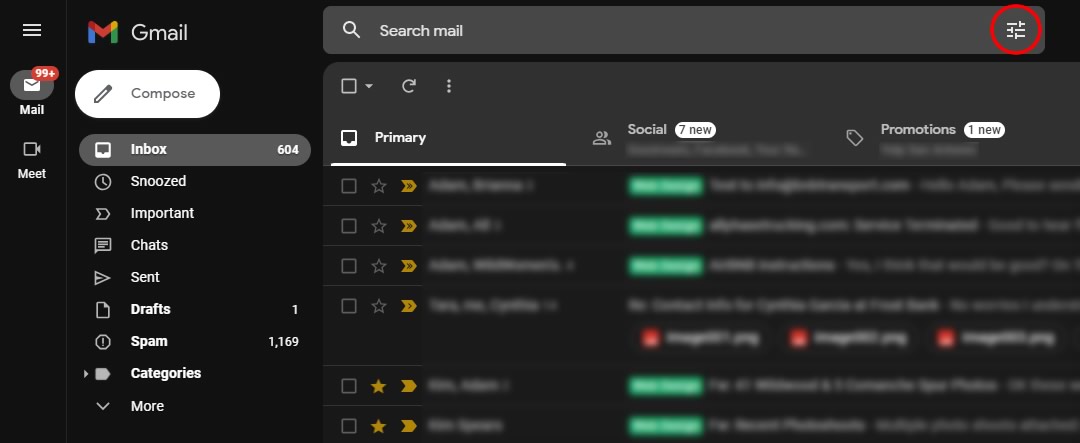
In the search box at the top, click the button on the right side of the search box, shown below [Show search options].
2. Create a Rule for Incoming Email From Your Domain
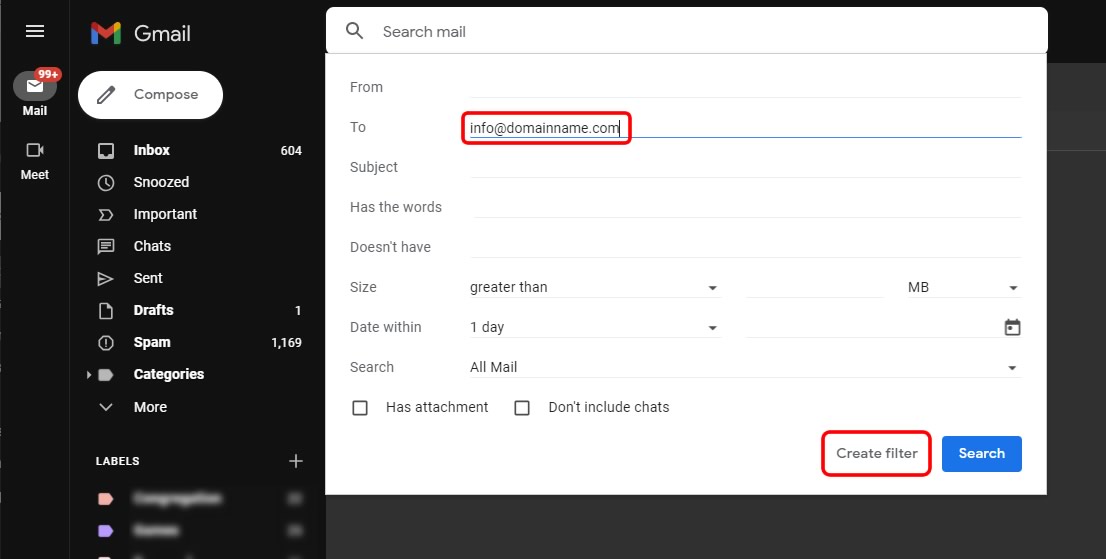
Next, in the field [To] type the email address from your domain name (probably [email protected]). Now click [Create Filter].
3. Apply Rules to Matching Messages
On the next page you can tell Gmail what to do when it receives a message that matches this filter. You may choose to [Apply a label], which makes it easier to distinguish emails from your domain name email. The option [Never send it to Spam] ensures you won’t have to worry about these messages getting lost in your Spam folder.
You may also choose to apply these rules to existing emails, by choosing the last option.
Create a Rule for Your Contact Form Emails
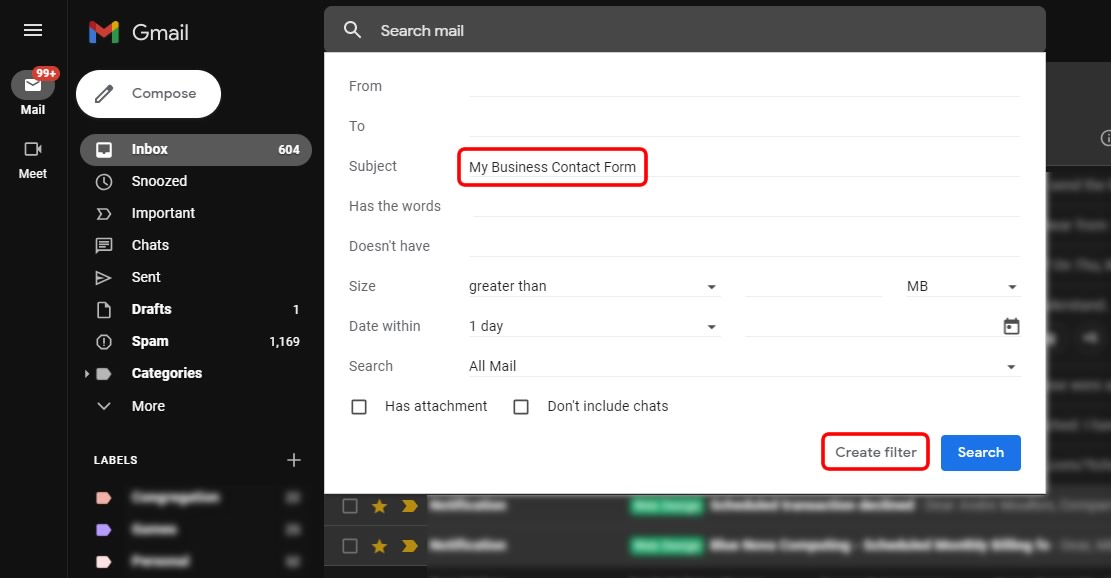
To create a filter that only matches your Contact Form emails, go to step 2, then in the field [Subject] type the subject of your contact form emails. Now click [Create Filter].
Posted in Services| Comments Off on Creating Gmail Message Filters
Use the following steps to get your new email account working in Gmail. We will provide you with the correct username and password.
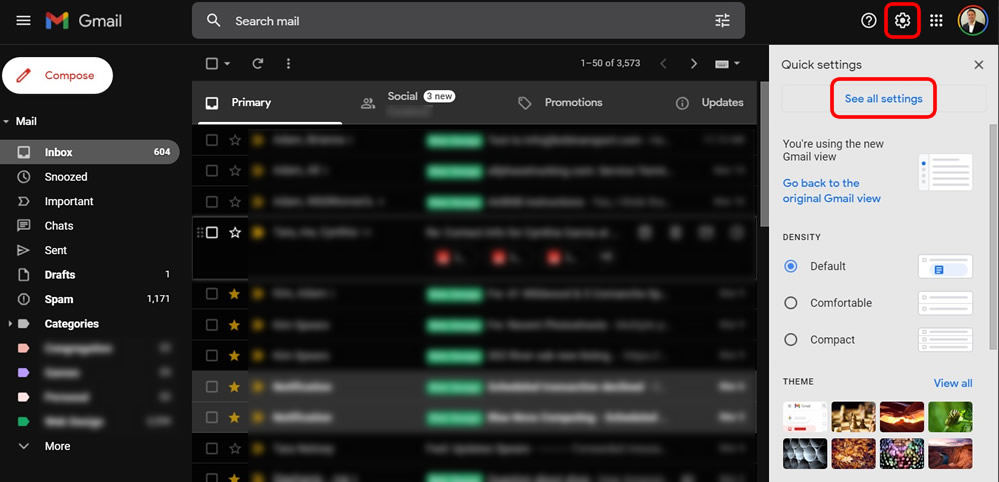
1. Log into your Gmail account.
2. Click on the Settings icon in the upper right corner. A drop down menu should appear and you can click on [See all Settings].
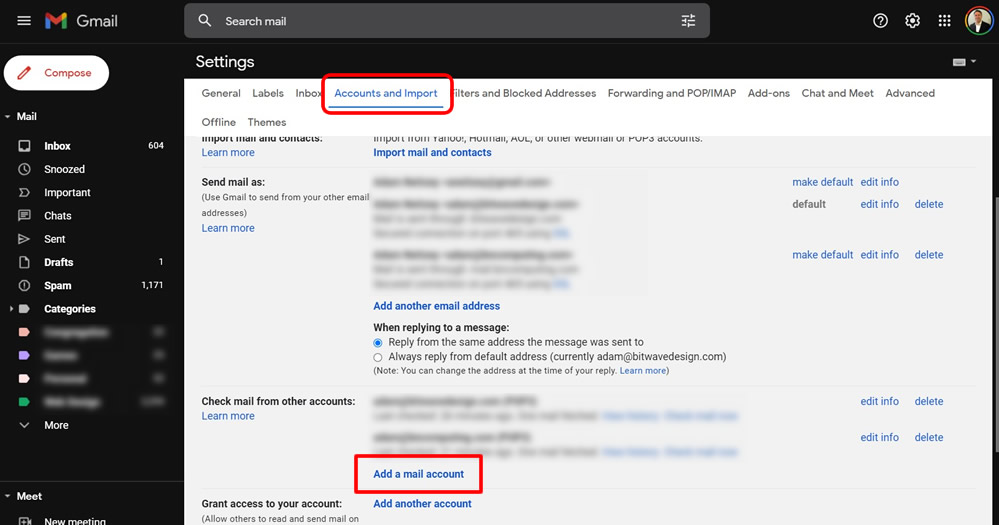
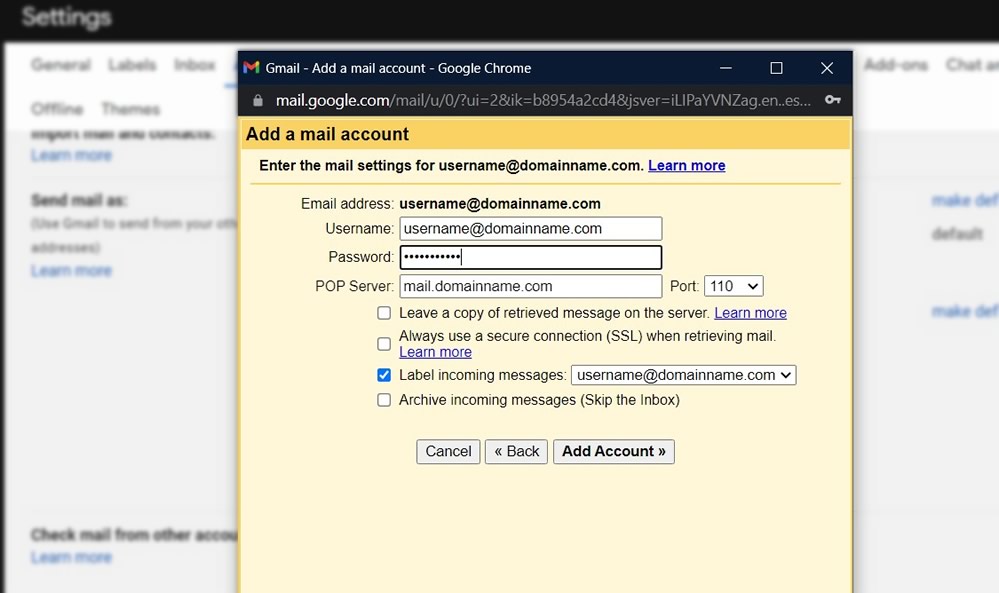
3. Click on the [Accounts and Import] tab. Then, in the section [Check mail from other accounts], click [Add a mail account]. A new window should pop up.
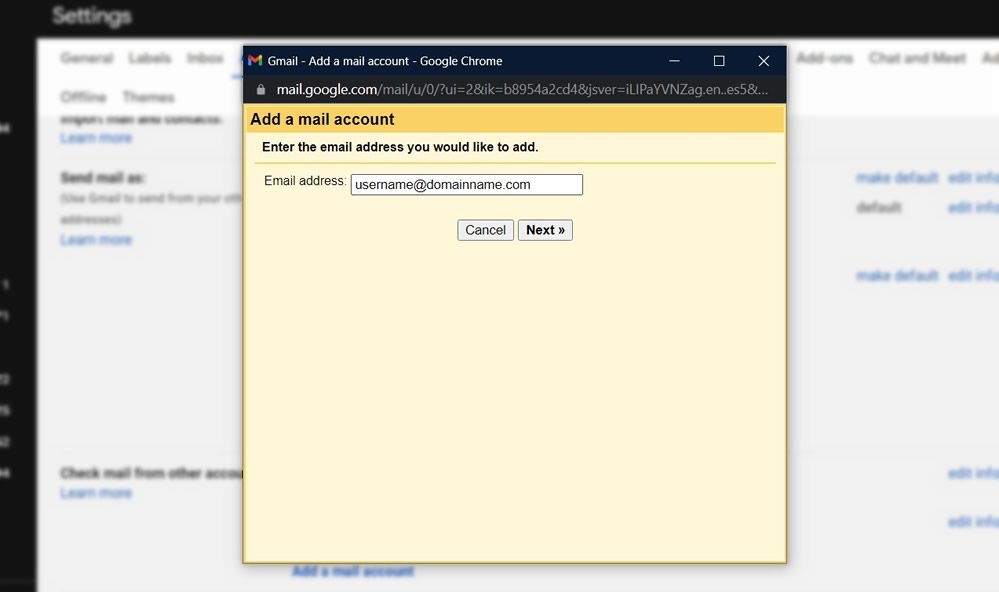
4. Enter your full email address in the new window, then click the [Next] button.
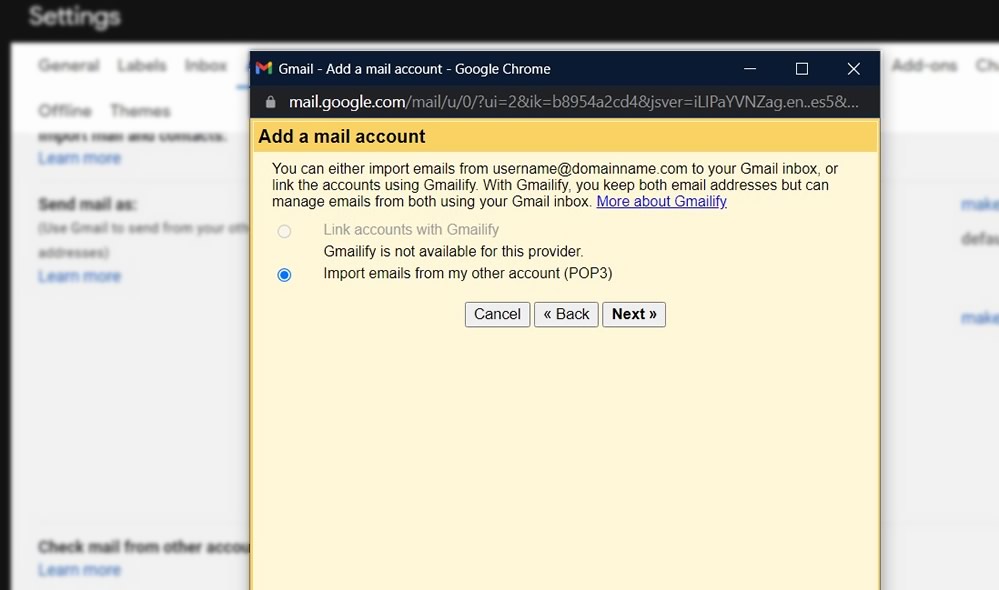
5. Ensure Import emails from my other account (POP3) is selected and click [Next].
Set the label option according to personal preference.
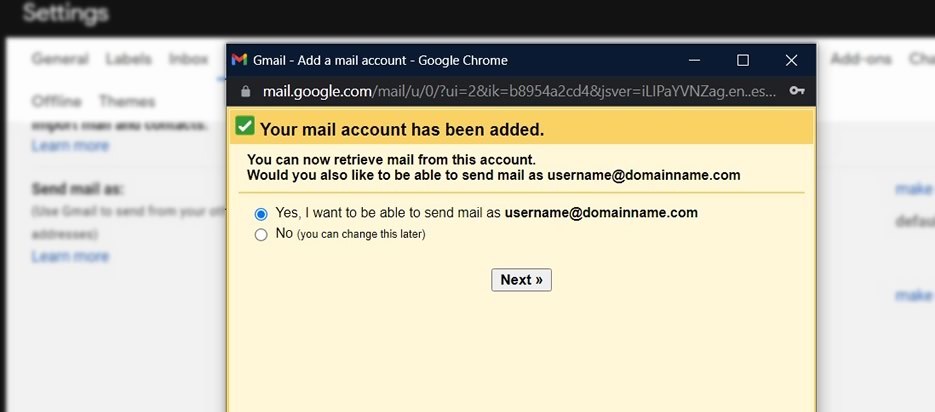
7. Click the [Add Account] button. You should receive a confirmation message that the mail account has been added (for receiving email).
8. Now, to be able to send mail out from Gmail using this address, make sure the “Yes” option is checked on the next screen. Then click the [Next] button:
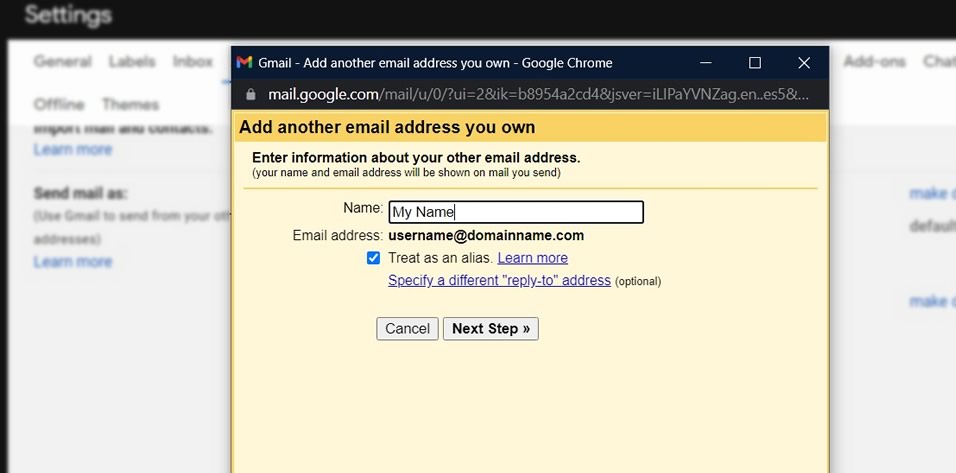
9. Enter your name here. Leave the “Treat as an alias” button checked. Click the [Next Step] button.
10. On the next screen, enter the following information:
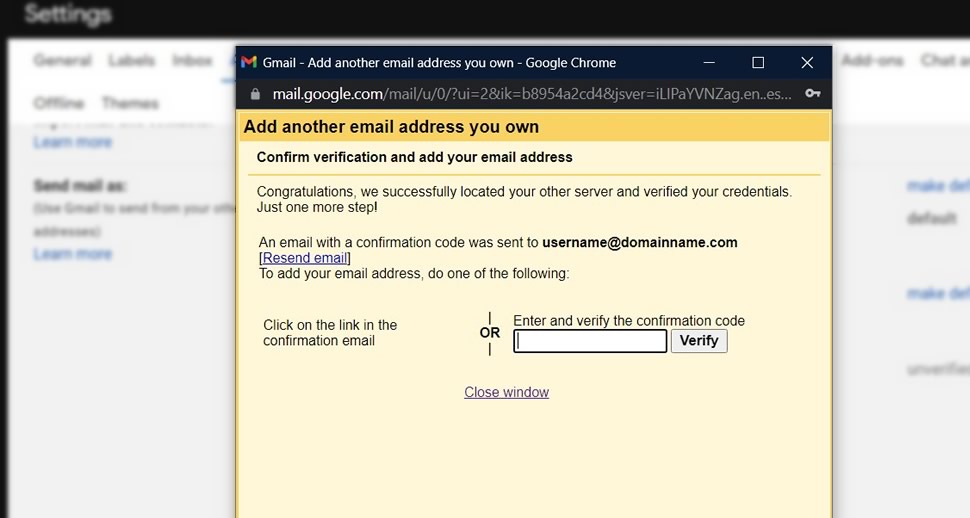
11. A confirmation email will have been sent to your Gmail inbox.
12. Check your Gmail inbox. You may need to wait for a minute or two.
13. Open the Gmail confirmation email.
14. Either click on the provided confirmation link or enter the confirmation code provided and click Verify. The small window will close automatically.
Congratulations! The mail for your domain name email account will now appear in your normal Gmail inbox. Let us know if you have any problems getting this working.
Posted in Services| Comments Off on Set Up Your Domain Email in Gmail
Taking and sharing photos online is an important ingredient for good marketing results. Here are some tips that can help you to plan and organize your photos to match the different social media services.
Photo Sharing Priorities
The first and most important place to focus is your business website. The photos on your main website pages are what potential customers will look at before deciding to contact you. Make sure they are high quality and that they represent your business well. Also, if your website has one or more photo galleries that show off or explain your services, then these are also where you attention should go first.
However, by posting extra photos on a regular basis, you can generate interest in your business, increase search site traffic, and impress potential clients. How should these be shared? We will discuss how to best utilize your website’s blog, Facebook and Instagram, as these are the best places to start.
Writing good copy for your business website is something that sounds easy. After all, it is your business. But most of us weren’t taught this kind of writing in school, so it’s easy to either get stuck, or worse, to write bad copy.
The good news is that the principles behind writing for the web aren’t hard to grasp. Here are some of the basics:
Don’t Over-Communicate
It’s good to be enthusiastic about your products or services, but remember that your visitor probably has just a few specific questions that they want answered. Long paragraphs with too much information are not likely to be read at all.
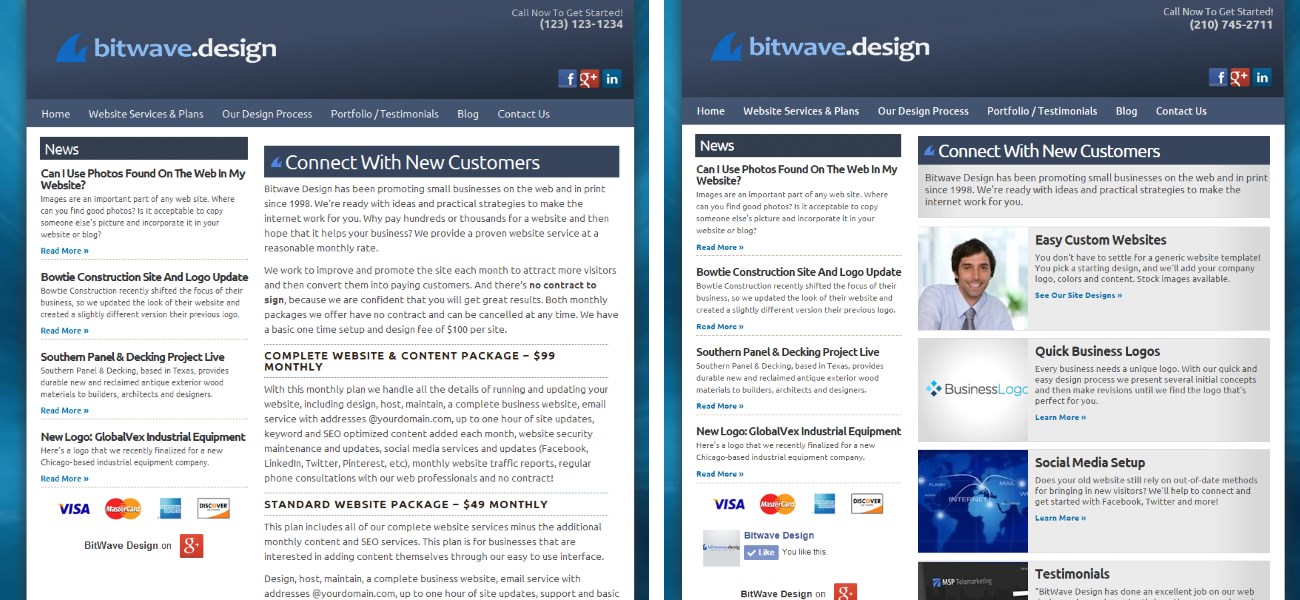
The best way to organize the information on your website is to start with only the most basic details on your home page, and then progressively offer visitors more details on sub-pages. Notice the home page examples below, one with full paragraphs of text, and the other using brief teasers:
The best way to organize the information on your website is to start with only the most basic details on your home page, and then progressively offer visitors more details on sub-pages. This way your visitors can see at a glance what you do, and then quickly find out where to get the additional details that they want.
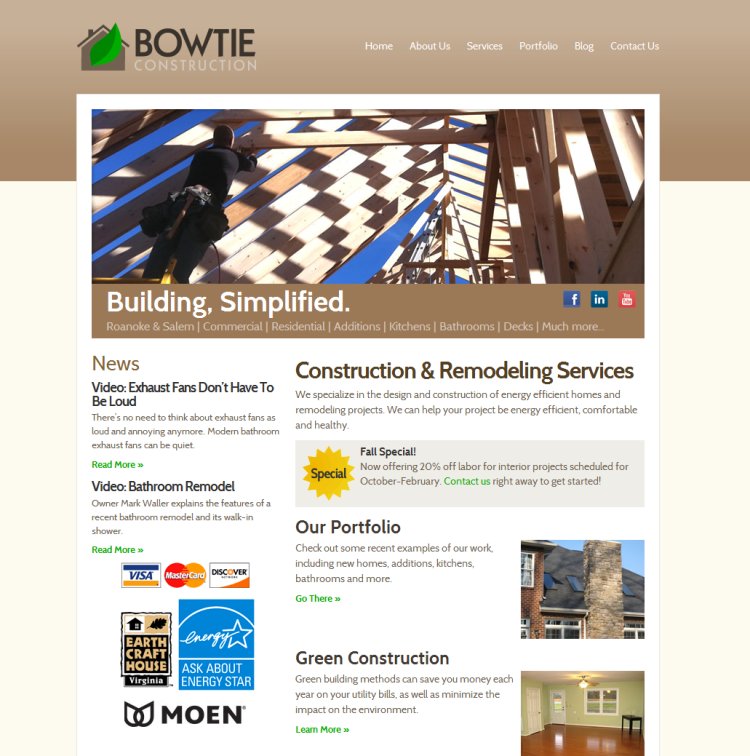
Bowtie Construction recently shifted the focus of their business, so we updated the look of their website and created a slightly different version their previous logo.
They specialize in the design and construction of energy efficient homes and remodeling projects. You can visit their website at http://www.bowtieconstruction.com.
Posted in Projects| Comments Off on Bowtie Construction Site and Logo Update
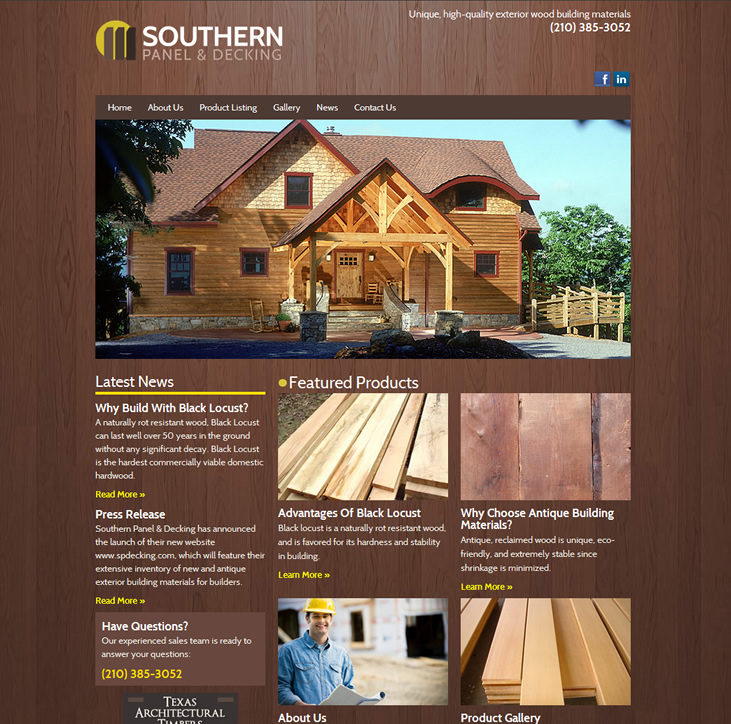
Southern Panel & Decking, based in Texas, provides durable new and reclaimed antique exterior wood materials to builders, architects and designers. The website features product listings, photos and articles featuring the unique hardwoods that they supply.
Here’s a logo that we recently finalized for a new industrial equipment company in Chicago. The colors, shapes and brushed metal texture are designed to match their industry and target audience.
Posted in Projects| Comments Off on New Logo: GlobalVex Industrial Equipment
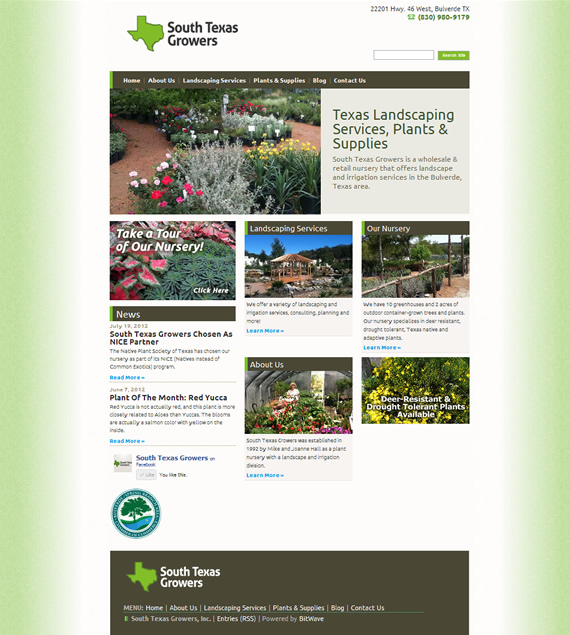
South Texas Growers is a wholesale & retail nursery that offers landscape and irrigation services. Their site features a full plant gallery as well as landscaping articles and videos.